

MCP servers and connectors
Give the agent new tools and data sources. Manage harness-wide MCP servers from Settings, and connect services like Slack, Atlassian, and Granola with one guided click.
The Model Context Protocol (MCP) is how the Kimchi agent talks to external tools and data sources. Kimchi Studio gives you two ways to use it: MCP servers you configure yourself, and connectors, one-click integrations Studio curates for popular services.
Both apply to every session in Studio, and Studio shares them with the Kimchi TUI and other Kimchi interfaces. Changes may require a restart to take effect.
Connectors
Connectors live under Settings → Connectors. Each connector bundles and runs an official MCP server for the service and walks you through OAuth authorization in your browser:
| Connector | What the agent can do |
|---|---|
| Slack | Search messages, list channels, send direct messages, and manage user groups in your workspace. |
| Atlassian (Rovo) | Query Jira issues and search Confluence pages, bringing your backlog and knowledge base into the conversation. |
| Granola | Search past meeting notes, surface decisions, and pull action items. |
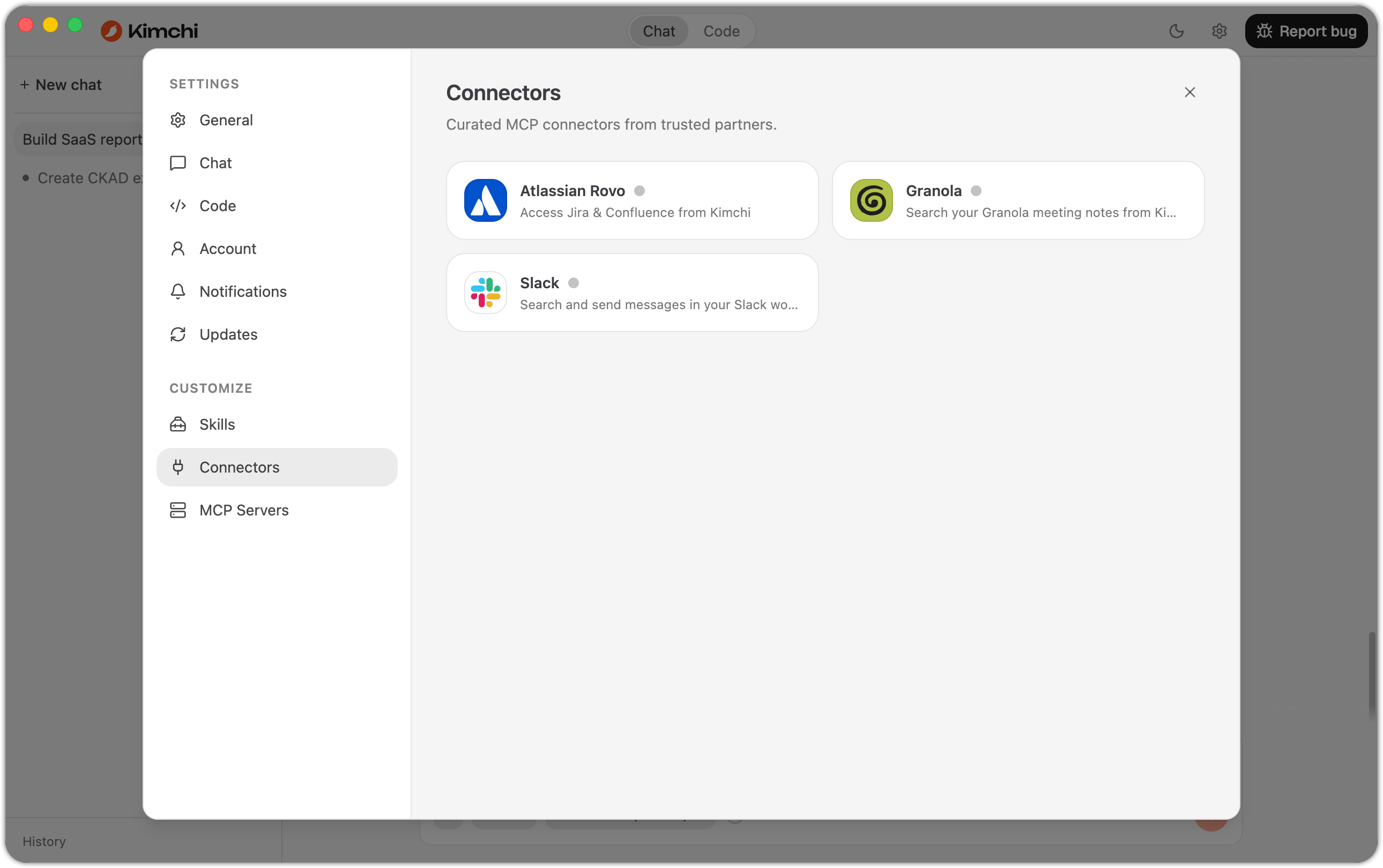
Settings → Connectors, with the three curated connector cards.
To connect, click Connect on the connector card and authorize Kimchi in the browser window that opens. Once connected, the connector's tools are available to the agent in every session.
To remove a connector, click Disconnect. Studio also deletes the connector's local data directory (cached credentials and state) on disconnect.
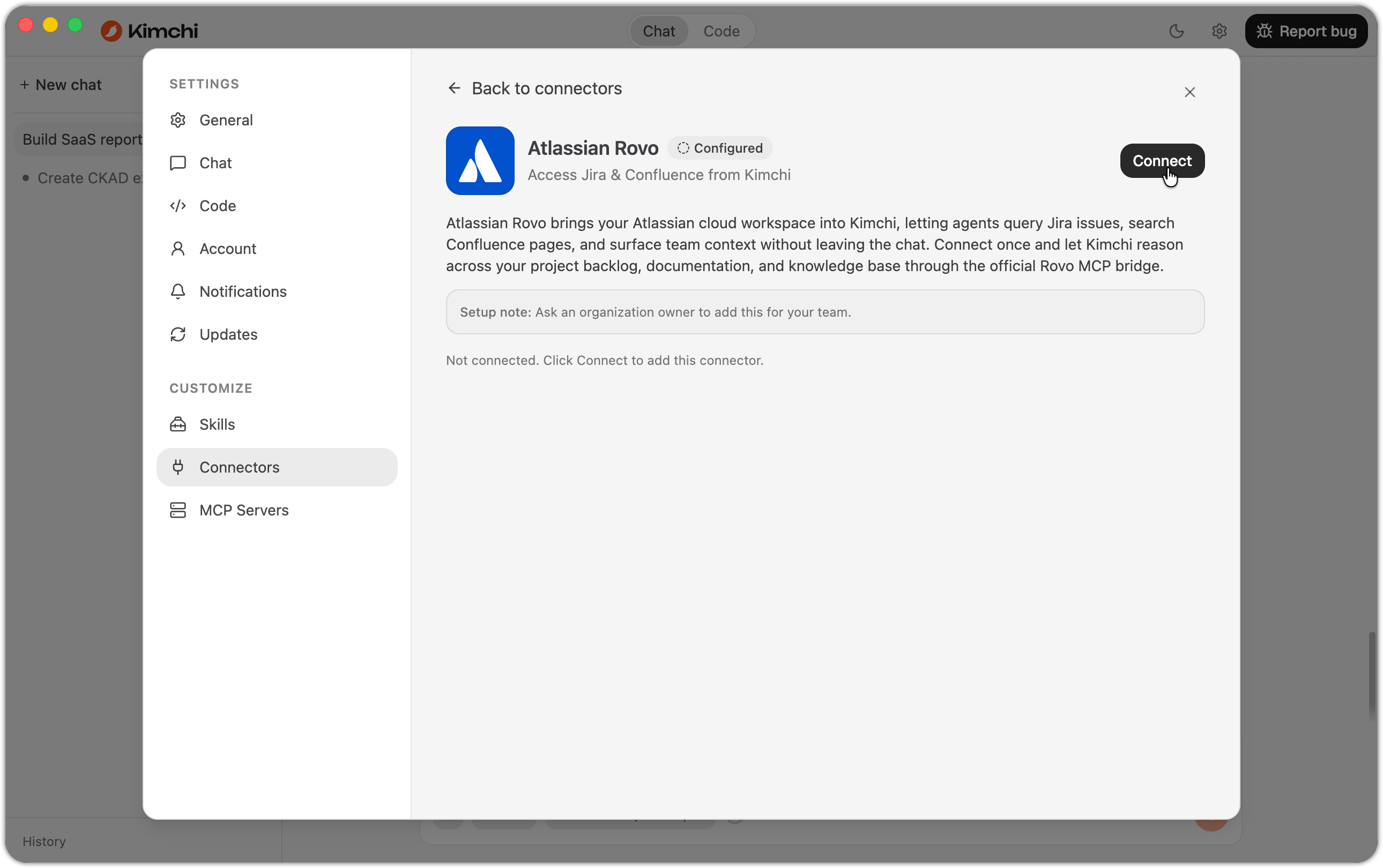
The Atlassian Rovo connector before connecting.
MCP Servers
Under Settings → MCP Servers you manage MCP servers yourself. Connectors don't cover every tool, so this is where you add any server the agent should be able to call.
To add a server, click Add server, fill in the dialog, and click Add. Studio saves the server, but you may need to restart before the new tools are available in your sessions.
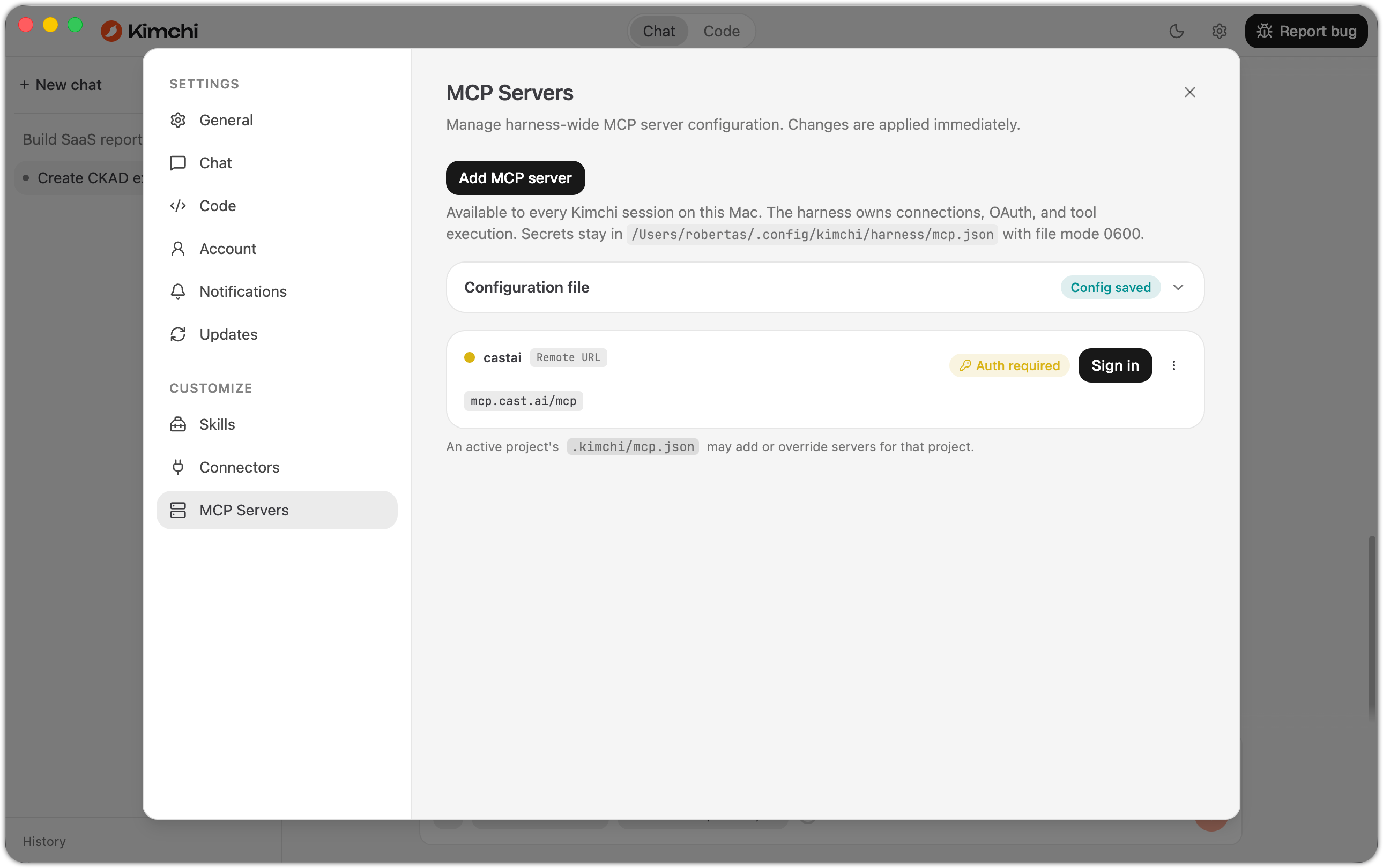
Settings → MCP Servers, with a remote server added and awaiting sign-in.
You add a server in one of two ways:
- Stdio server: a local command Studio launches (for example
npx -y some-mcp-server). Fields cover the command, its arguments, environment variables, and an optional working directory. - Remote (URL) server: an HTTP endpoint Studio connects to, with fields for the URL, request headers, and authentication.
Authentication for remote servers
For a remote server, choose how Studio authenticates:
- Auto-detect (default): Studio inspects the server when you save and picks the right authentication flow. Leave this unless you know you need something specific.
- OAuth 2.1: Studio runs an OAuth flow. Set a custom redirect URI only when your OAuth app already has one registered from another tool (for example Claude). Otherwise, leave it empty. The advanced options let you choose the grant type, client ID and secret, and scope.
- Bearer token / Bearer token from environment variable: send a fixed token. Type it in directly, or read it from an environment variable.
- None: connect without authentication.
Advanced options
The dialog's Advanced section holds the options that tune how a server runs:
| Option | What it controls |
|---|---|
| Custom headers | Extra HTTP headers sent with each request, for example an Authorization or API key header. Click + Add header. |
| Lifecycle | When the server connects: Lazy (connect on demand) (the default), Eager (connects automatically on startup once authorized), or Keep alive (always connected). |
| Idle timeout | Minutes of inactivity before Studio closes an unused connection. Leave empty to keep the default. |
| Direct tools | Which of the server's tools the agent can call directly: Discover on demand (default), Expose all tools directly, Expose selected tools, or Expose no tools (empty list). Never (direct tools off) turns off direct tool calls. |
| Exclude tools | Hides chosen tools from the agent. Both pickers let you click to discover tools the server exposes and choose from the list. |
| Debugging | Expose resources makes the server's resources available to the agent, on top of its tools. Debug turns on verbose logging. |
Managing servers
Back in the server list you can edit or remove a server and see its status at a glance. Select Probe tools on a server to list the tools it exposes. This is the quickest way to confirm it connected correctly and see exactly which tools the agent gained.
Studio writes servers you add here to the harness's MCP configuration. They're also available in the Kimchi TUI and the VS Code extension. Likewise, servers you configure via the TUI show up in Studio. For the underlying configuration format and per-project scoping, see MCP servers.
Import from other AI apps
If you're coming from another AI coding tool, Studio can import your existing MCP servers, along with your skills. Do this during first-launch onboarding, or later from Settings → General → Import from other apps. Studio scans your machine, shows what it found, and lets you pick what to bring over.
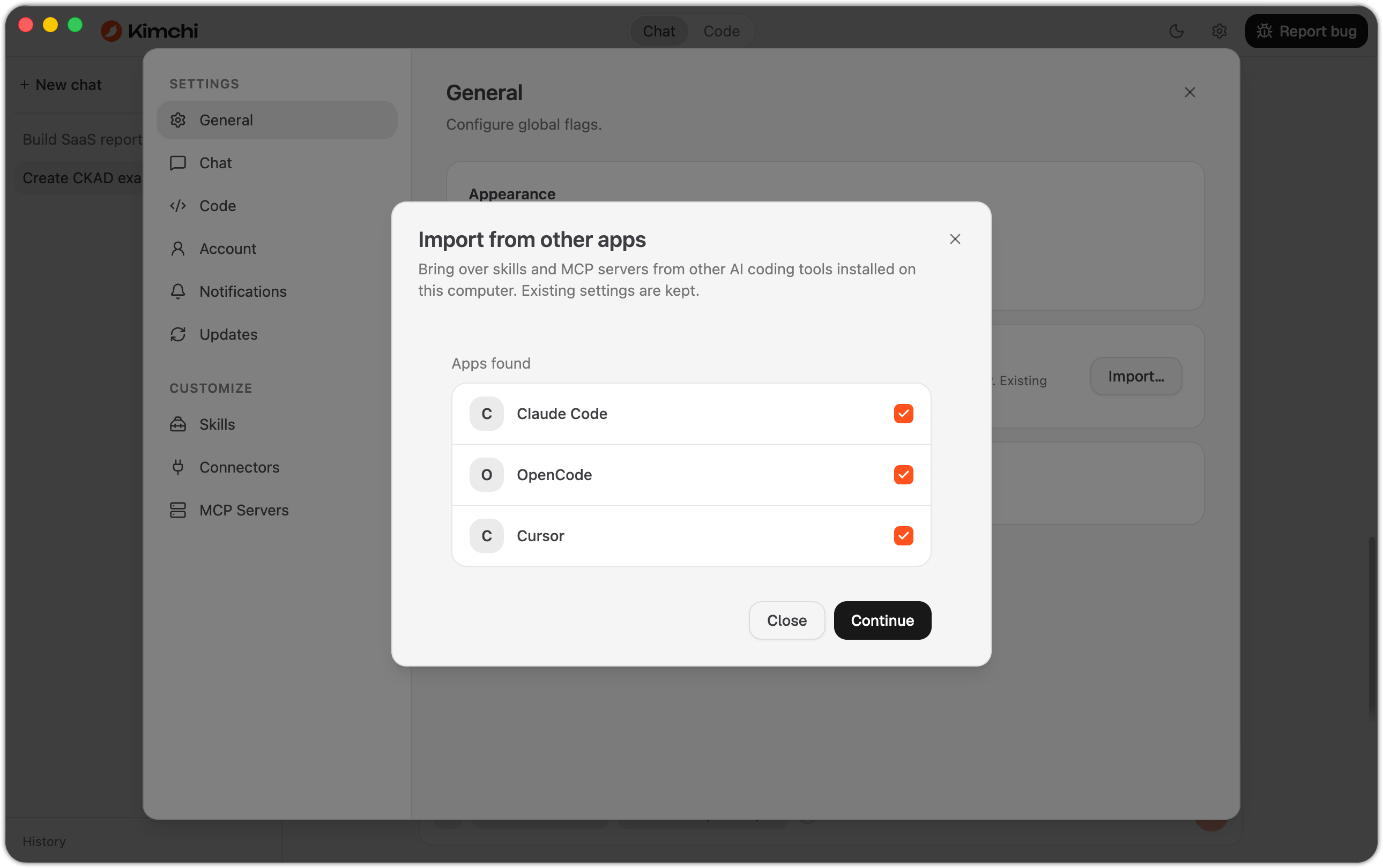
The Import from other apps dialog, reachable any time from Settings → General.
What's next
Updated 6 days ago